Invite someone to your workspace
Send an invitation with a role. They join with the email you invited, and take one of your plan’s team seats.
Updated
Before you start
- You’re the workspace owner or an admin.
- A free team seat: Free and Starter have 1 (just you), Creator 2, Studio 5, and the trial 2.
Steps
- Go to You → Team & roles.
- Tap Invite someone.
- Enter their Email and pick a Role (each one is described in the list).
- Tap Send invitation. They get an email; you also get a link to share (“Invite sent. You can also share this link:”) with Copy link.
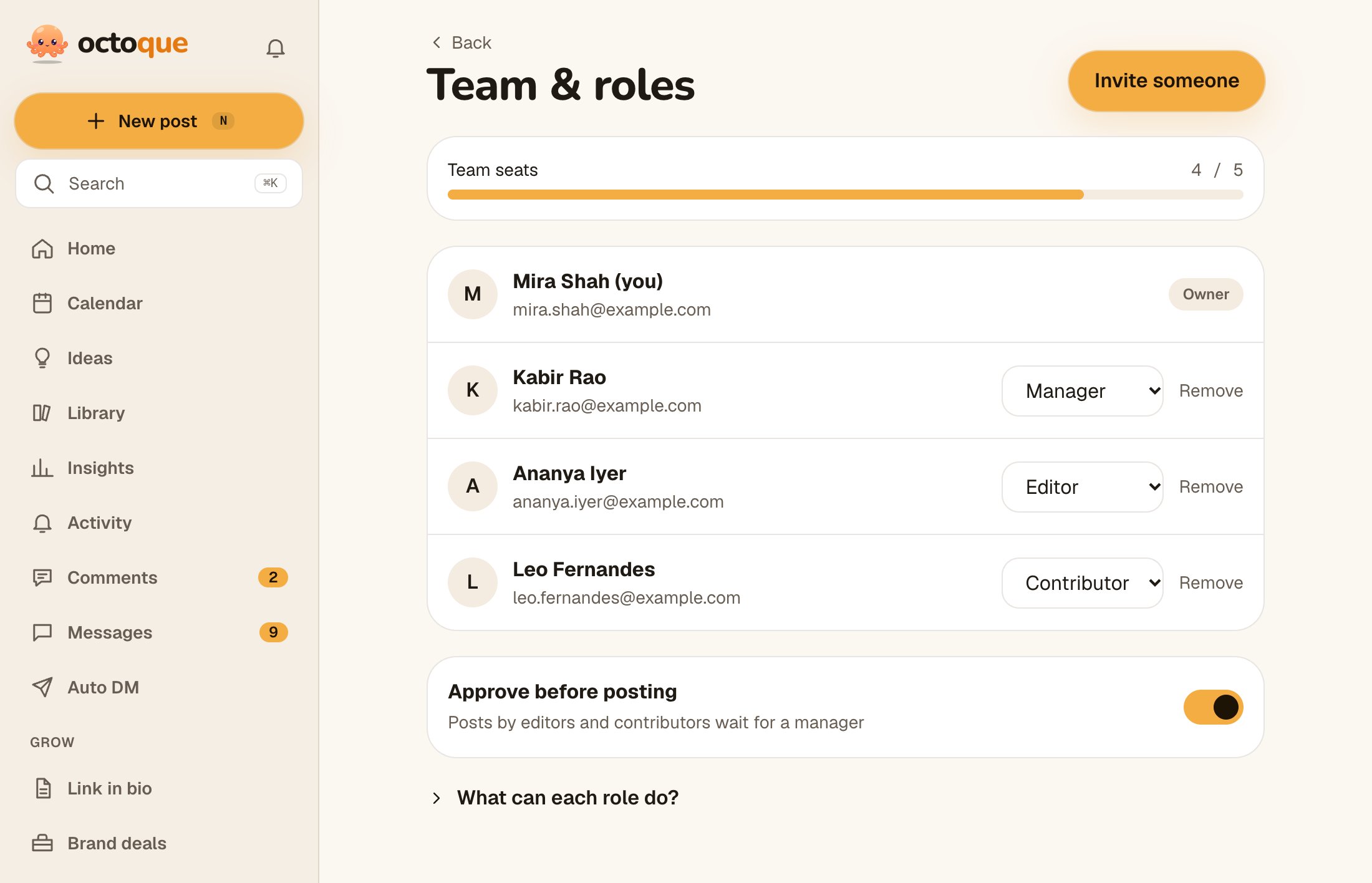
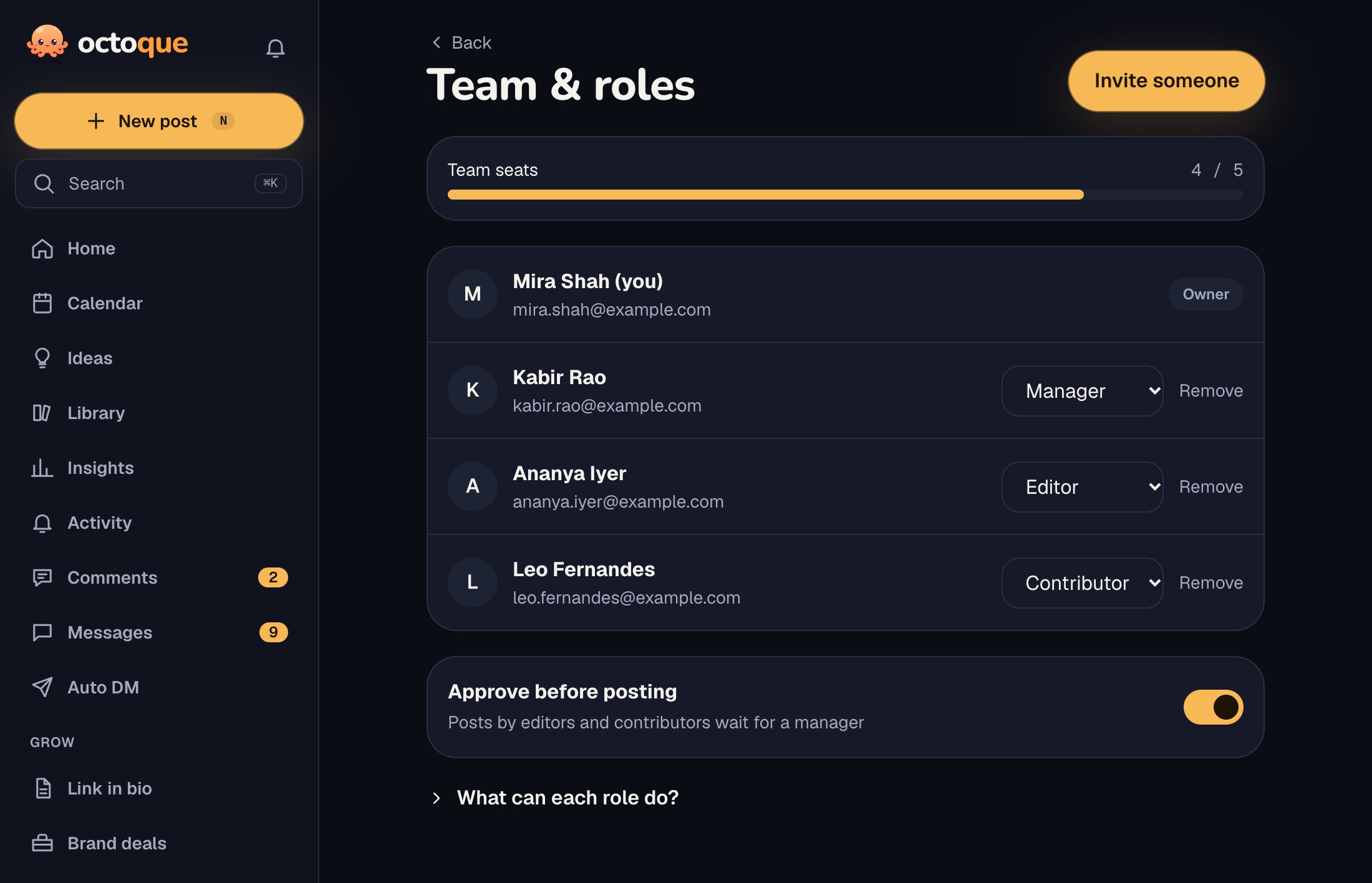
What you’ll see
They show as “Invited as Editor · not joined yet” until they accept. To take an invitation back, tap Cancel next to it.
For the person you invite
Open the link and you’ll see who invited you and the role. Create an account, or log in, with the email the invitation was sent to. A short welcome follows, then you’re in.
Troubleshooting
Your plan includes 2 team members. Upgrade to Studio for 5.
All seats are used (the number matches your plan). Remove someone, or change plan. See Plans and limits.
This invite has expired or was already used. Ask for a new one.
Ask the person who invited you to send a new invitation.
This invite is for name@example.com. Log in with that email to join.
Invitations only work for the email they were sent to. Log out and log in (or sign up) with that email.
There’s no Invite someone button
Only the owner and admins can invite. Ask one of them.
Related articles
Last updated . Found something out of date? Tell us at hello@octoque.com. More in Teams and approvals