Sign in with Google or a password
Continue with Google, or use your email and password. Manage both under You → Sign-in & security; Forgot password? on the log-in page resets a password.
Updated
Steps
- With Google: on Log in or Sign up, tap Continue with Google and pick your Google account. New to Octoque? That creates your account, with your email already confirmed.
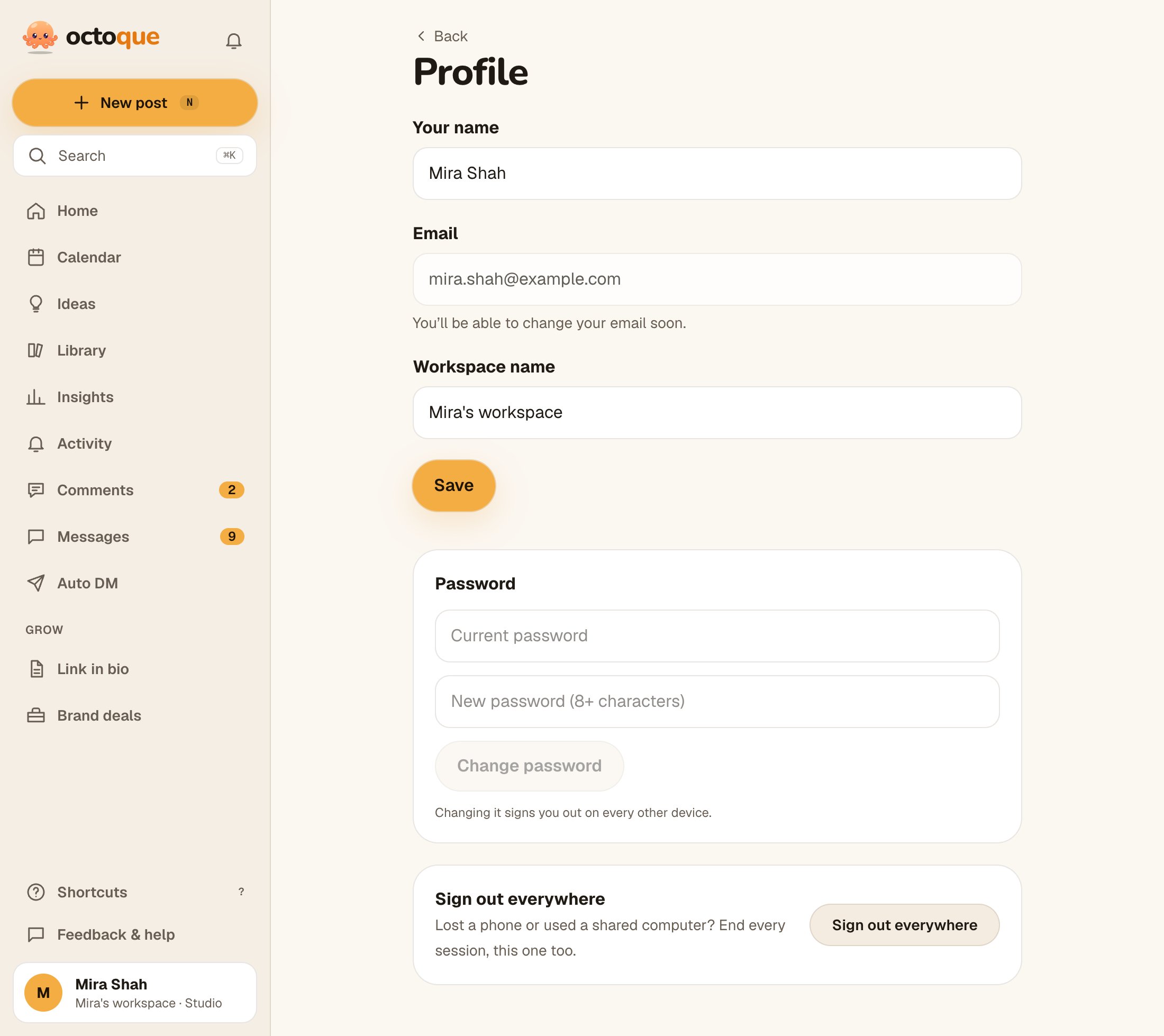
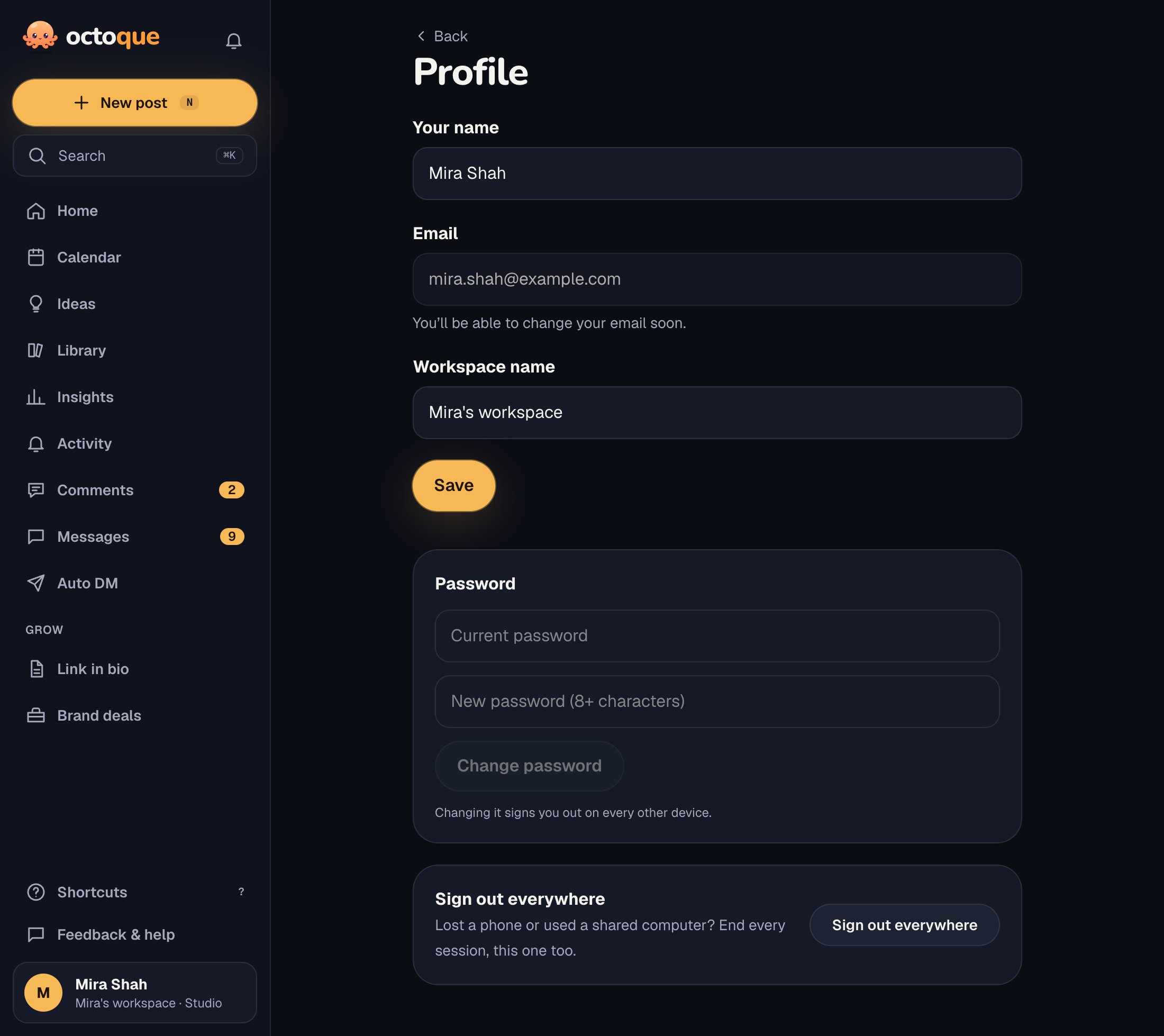
- Change your password: go to You → Sign-in & security. Under Change password, enter your Current password and a New password (8+ characters), then tap Change password.
- Can’t sign in: on Log in, tap Forgot password?, enter your email and tap Send reset link. Open the email, choose a new password and tap Save and log in.
Continue with Google
Google tells us your name, email and Google account ID, nothing else: we never see your Google password or your Gmail, Drive or contacts. In the iPhone and Android app, Google opens in your phone’s browser sheet (Google doesn’t allow signing in inside apps’ web views) and brings you straight back.
Already have an Octoque account with the same email? If you confirmed that email, Google is linked to it and you’re in, and we email you that it happened. If you never confirmed it, log in with your password once, then tap Link Google under You → Sign-in & security. This stops anyone from taking over an account by signing up with someone else’s email.
Link or unlink Google
You → Sign-in & security shows how you sign in. Tap Link Google to add it, or Unlink to remove it. To unlink, you need a password first, so you can still get in: tap Set a password and we email you a link to set one (it works for 30 minutes).
Sign out everywhere
Lost a phone or used a shared computer? You → Sign-in & security → Sign out everywhere ends every session, this one too.
Your name and workspace name
Change Your name on You → Profile and tap Save. The owner and admins can change the Workspace name there too. Changing your email isn’t possible yet; write to us if you need it.
Troubleshooting
That email and password don't match.
Check for typos and caps lock, or reset it with Forgot password?. If you signed up with Google, tap Continue with Google instead.
Google didn’t share a verified email. Try another Google account, or sign up with your email.
Google hasn’t confirmed that address for your Google account. Confirm it in your Google account, use another one, or sign up with your email and a password.
That email already has an account. Sign in with your password once to link Google.
Log in with your password (or reset it), and we take you to Sign-in & security to link Google.
That Google account is already linked to another Octoque account.
One Google account opens one Octoque account. Sign in to the other account and unlink Google there first.
That Google sign-in took too long or was already used. Try again.
Sign-in links from Google work once, for 10 minutes. Tap Continue with Google again.
Set a password first, so you can still sign in without Google.
Tap Set a password under Sign-in & security, follow the email, then unlink.
Your current password isn't right.
Enter the password you use now, or log out and reset it.
This link has expired. Ask for a new one.
Reset links are for one use and expire. Tap Get a new link or start again from Forgot password?.
Too many tries. Wait 5 minutes and try again.
Sign-in is paused for a few minutes after many wrong tries, to keep your account safe. The number of minutes varies.
Your session has ended. Sign in again.
You were signed out (a password change, Sign out everywhere, or a long time away). Log in again.
Related articles
Last updated . Found something out of date? Tell us at hello@octoque.com. More in Account, privacy and data