Calendar, queue and library
Set your posting times and use the queue
Posting times are your regular slots. Add to queue puts a post in the next free one, so you can fill a week in one sitting.
Updated
Steps
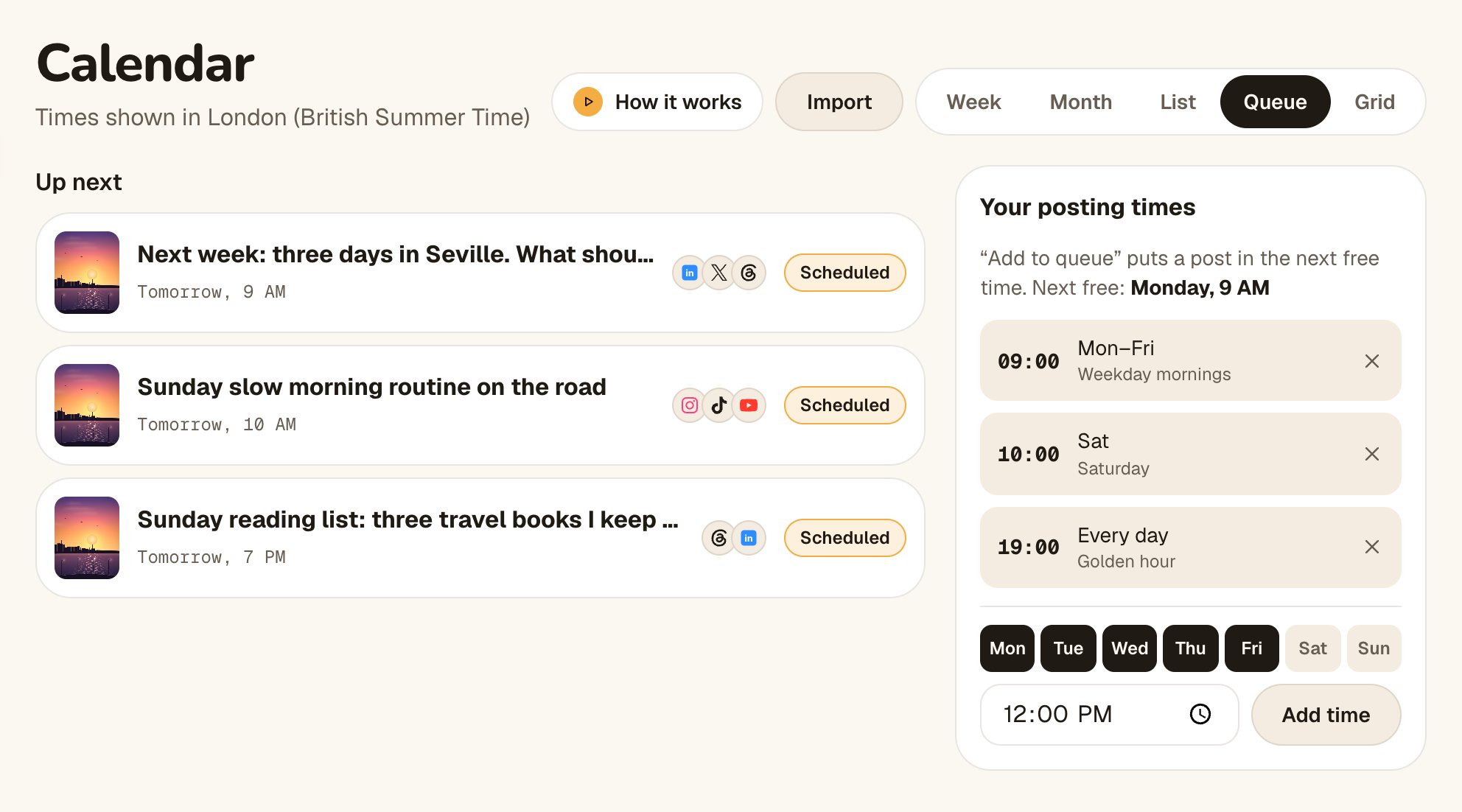
- Go to Calendar → Queue (or You → Posting times).
- Under Your posting times, pick the days (they light up), set a time and tap Add time.
- Remove a time with the × next to it.
- When you make a post, choose Add to queue under When?. It goes in the next free time, shown as “Next free”.
What you’ll see
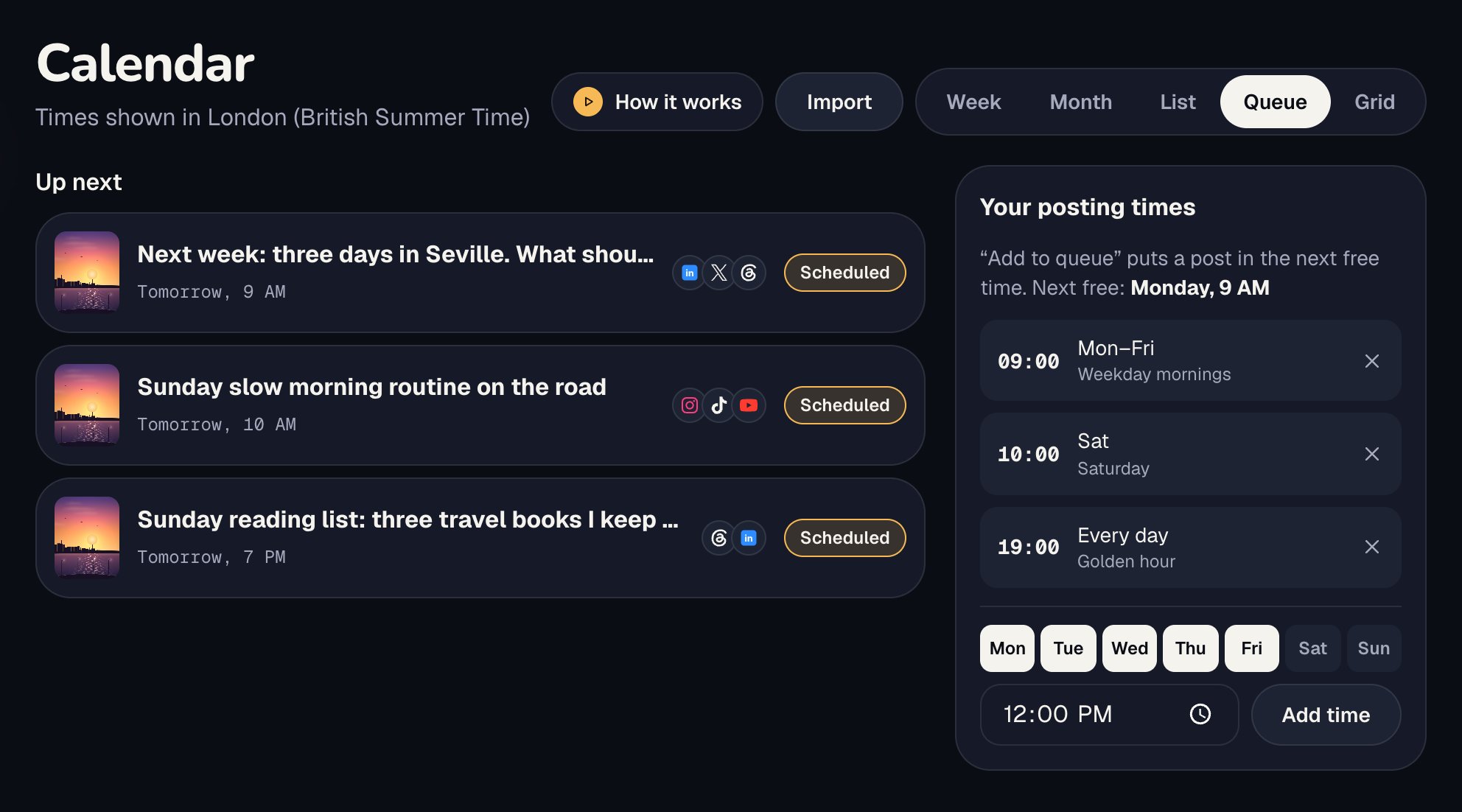
Up next lists everything waiting to go out, in order. Each queued post takes its own slot, and all its platforms go out at that time.
Your first posting times
The first time you open the queue, Octoque adds three times you can change: 09:00 on weekdays (“Weekday mornings”), 19:00 every day (“Golden hour”) and 10:00 on Saturday.
Queue or golden hour?
Golden hour gives each platform its own time. The queue sends everything at one of your own times. Use the queue when you want a steady rhythm; use golden hour for the best time per platform.
Related articles
Last updated . Found something out of date? Tell us at hello@octoque.com. More in Calendar, queue and library