Calendar, queue and library
Use the calendar
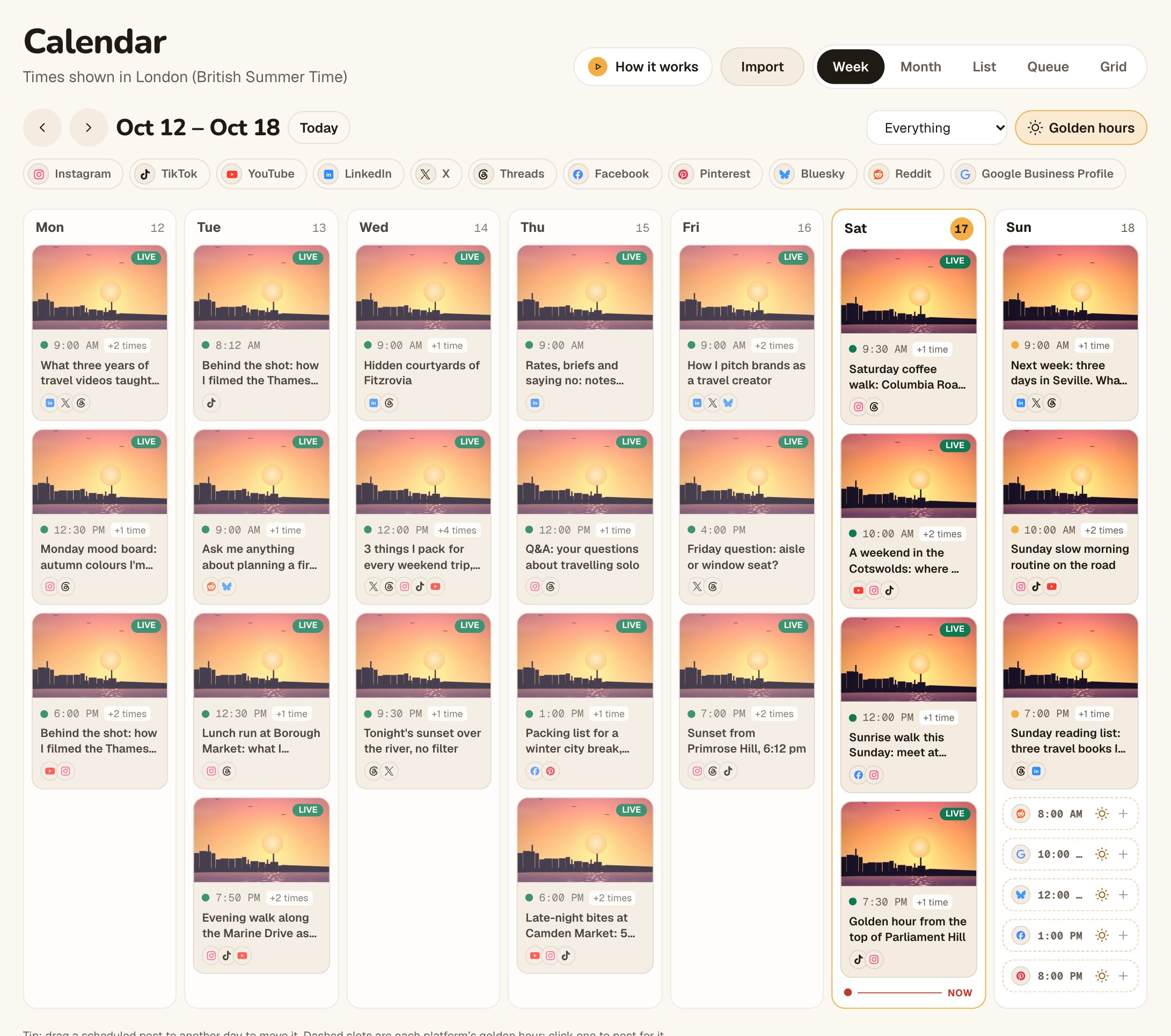
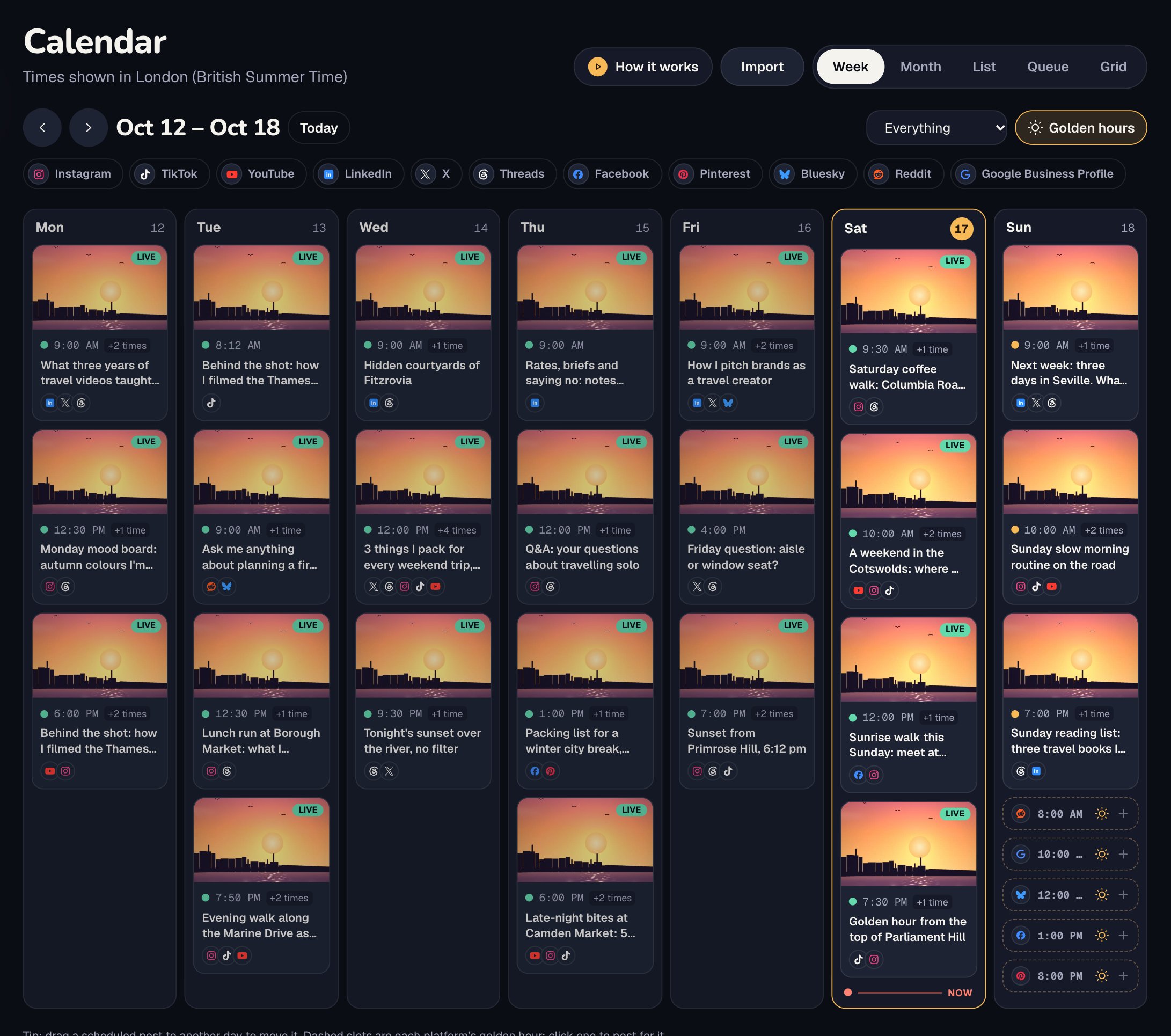
See every scheduled and live post by week or month, one card per post with the platforms going out that day.
Updated
Steps
- Tap Calendar. It opens on Week; times show in your time zone (“Times shown in …”).
- Use the arrows to move a week (or month) back or forward, and Today to come back.
- Each card shows the time (or a time range when platforms go out at different golden hours), the platforms, and the first line of the caption. A small dot on each platform shows its status. Tap a card to open the post.
- Switch to Month for the big picture. A day shows up to three posts and “+2 more”; tap a day to open its week.
- On an empty day, tap + Add to start a new post.
Where are my drafts?
Drafts stay off the calendar, in Library. Posts waiting for approval do show, at their planned time.
Moving a post
Open the post and tap Edit next to a platform to change its time. See Edit or reschedule a post.
Related articles
Last updated . Found something out of date? Tell us at hello@octoque.com. More in Calendar, queue and library