Account, privacy and data
Choose your notifications
Pick what Octoque tells you about, and set quiet hours. Activity keeps the full list of what happened.
Updated
Steps
- Go to You → Notifications.
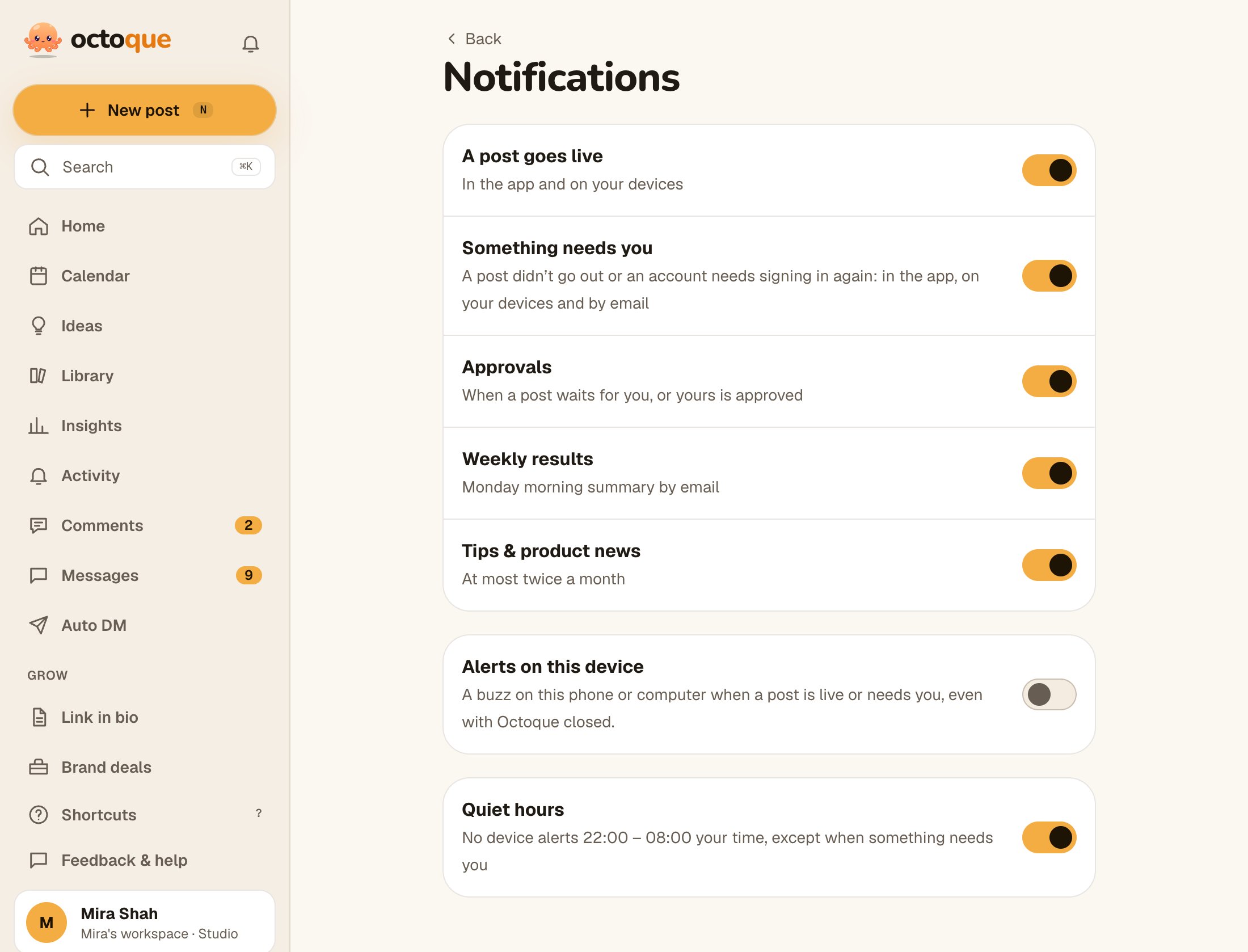
- Switch each one on or off: A post goes live (in the app and on your devices), Something needs you (in the app, on your devices and by email), Approvals, Weekly results (Monday morning email), Tips & product news (at most twice a month).
- Turn on Alerts on this device to hear about it on your phone or computer, even with Octoque closed. See Alerts on your phone.
- Turn on Quiet hours for no device alerts from 22:00 to 08:00 your time, except when something needs you.
The bell
The bell at the top of every screen shows your latest notifications and how many are new. Tap one to open it, or Mark all read.
Activity
Activity lists what happened with your posts, grouped by day: live, didn’t post, needs approval, approved. Several platforms of one post share one line. A dot marks new items, and opening Activity marks them read.
We keep Something needs you on by default so a post never fails silently. Some emails can’t be switched off, such as password resets and a short reminder of the rules every 90 days.
Related articles
Last updated . Found something out of date? Tell us at hello@octoque.com. More in Account, privacy and data